
Introduction
A grandparent’s dog or cat is often their daily companion. A pet camera lets the whole family check in on that companion, say hello and share the day. The best pet cameras for grandparents aren’t the ones with the longest spec sheet. They’re the ones a non-technical person can live with: simple setup, clear audio, minimal alerts and sharing that doesn’t turn into a daily tech-support call.
Most pet camera roundups assume the buyer is a busy owner away at work. This guide is built differently. It’s for grandparents who own pets and for adult children who buy and configure the camera for them. We focus on easy-to-use pet cameras, how family sharing really works, and what each option costs once subscriptions enter the picture.
One note up front: not every pet camera offers a video-calling experience. Most offer two-way audio. You hear and speak, but nobody sees a face. We point out the one robot-style exception below.
Quick Comparison: Best Pet Cameras for Grandparents
| Product | Best for | Video quality | Two-way audio | Family sharing | Subscription | Ease of use (editorial note) |
|---|---|---|---|---|---|---|
| Furbo 360° Dog Camera | Dog owners who want treat tossing | 1080p, rotating 360° view | Yes | One shared login | Optional Dog Nanny; some bundles require a plan | Plug-in and app setup; shared password is simple but less private |
| Petcube Cam 360 | Simple live view for cats or dogs | 1080p, 360° pan/tilt | Yes | Invite family accounts (near-full control) | Live view free; clips and smart alerts need Petcube Care | Basic features, no treat mechanics |
| TP-Link Tapo C210 | Subscription-free coverage with limited sharing permissions | 2K (3 MP), 360° pan, 114° tilt | Yes | Invite accounts; Basic or Live View Only levels | Not required for microSD; Tapo Care optional | Security-camera app, not pet-specific |
| Wyze Cam v4 | Low-cost fixed view of one spot | 2.5K, fixed | Yes | Share to another Wyze account (limited permissions) | Not required for microSD; Cam Plus optional | Simple hardware; 2.4 GHz Wi-Fi only |
| Enabot EBO Air 2 Plus | Video calls with pets and family | 3K, mobile robot | Yes, plus two-way video | Multi-account access with access-rights controls | Built-in storage plus microSD; Cloud+ optional | One-tap call button; stairs and docking limits |
Plans, prices and bundles vary by retailer and region. Check current details before buying.
Best Pet Cameras for Grandparents
These products are different kinds of devices. Furbo is a treat-tossing pet camera. Petcube Cam 360 is a conventional pet camera. The Tapo C210 and Wyze Cam v4 are general security cameras that also watch pets. The Enabot is a robot-style camera. None of them is a medical or fall-detection device.
Furbo 360° Dog Camera – Best for Dog Owners Who Want Treat Tossing
Overview: Furbo is the most “interactive” option here. A grandparent or family member can talk to the dog and toss a treat, which gives a tangible reason to check in.

- BASIC SEE, TALK & TOSS FEATURES INCLUDED, NO SUBSCRIPTION REQUIRED – Included features: 1080p live view, 360° rotating v…
- FULL HD 360° ROTATING PET SECURITY CAM – Best-in-class 1080p video with a motorized 360° rotating view covers your entir…
- REAL-TIME 2-WAY AUDIO & COLOR NIGHT VISION – Seamlessly hear and speak with pets and family members at home, with in-app…
Important features: 1080p video, a rotating 360° view, two-way audio, barking alerts, a 100-treat capacity and infrared night vision, according to Furbo’s published specs.
Ease of setup: Reviewers describe the process as plugging in, installing the app and connecting to home Wi-Fi.
App usability for older adults: We couldn’t verify font sizes or button layouts from official sources. Test the app on the grandparent’s own phone or tablet, and turn on the device’s large-text setting.
Family sharing: Furbo’s support page on sharing your Furbo account says you share one username and password with family. That’s easy for a grandparent because there’s nothing to accept or approve. The tradeoff is that everyone has the same access, and the password becomes something you must manage carefully.
Subscription: Basic see-talk-toss features are listed as included on retail listings. Advanced alerts need a Furbo Dog Nanny plan, and some retail bundles require a subscription. Check the exact listing.
Advantages: Interactive treat tossing, a simple shared login, and barking alerts.
Disadvantages: The treat mechanism can click or rattle, and the shared password limits privacy control. It is also the priciest camera in this guide, apart from the robot.
Who should buy it: Dog owners who want the pet to associate the camera with something rewarding.
Who should avoid it: Cat owners should look for Furbo’s cat model instead, and anyone who wants individual access controls should pass.
Petcube Cam 360 – Best for a Simple Live View of Cats and Dogs
Overview: A plain, no-treat pan/tilt camera aimed at watching and talking, without extra mechanics.

- SEE EVERY CORNER: See, hear and comfort your pet in 1080p HD with this 360° pan-tilt pet camera — view the whole room, n…
- SPOT CHANGES EARLY: The first signs of trouble are easy to miss. Daily Diary recaps your dog or cat's day and Smart Filt…
- A VET IN YOUR POCKET: Clinic visits add up fast — and most start with a simple question. Get instant answers from our AI…
Important features: Retail and Petcube listings describe 1080p video, 360° pan/tilt, 8x digital zoom, night vision up to 30 feet and two-way audio. Listings are inconsistent on some specs, so verify the model.
Ease of setup: Petcube’s support center describes a QR code that the app generates, which you hold up to the camera’s lens during setup. It’s an unusual step, so walk through it once together.
App usability for older adults: We found no independent evidence on this. Test with the grandparent’s device.
Audio: Petcube says a microphone problem can appear when upload speed falls below 2 Mbps, so confirm the home’s connection.
Family sharing: Each person creates their own Petcube account, and you add them to a “Family” or “Friend” list. Per Petcube’s sharing guide, family members get almost full control, including changing camera settings. That helps a grandparent but also means they could change something by accident.
Subscription: Live viewing is free, but clips and smart alerts need Petcube Care. Petcube advertises Care bundles from $5.99 per month.
Advantages: Lower cost, no treat noise, and individual accounts for each family member.
Disadvantages: Without Care, there’s no recorded history.
Who should buy it: People who want a live view and a quick hello.
Who should avoid it: Anyone who wants to review recordings without paying.
TP-Link Tapo C210 – Best Subscription-Free Pick With Sharing Limits
Overview: A general indoor security camera that works well as a pet camera, with local recording and unusually flexible sharing permissions.

- Ultra-High-Definition Video —— Records every image in crystal-clear 3MP definition
- Pan and Tilt —— 360º horizontal range
- Advanced Night Vision —— Provides a visual distance of up to 30 ft
Important features: TP-Link lists 2K (3 MP) video, 360° horizontal and 114° vertical range, 850 nm infrared night vision up to 30 feet, two-way audio and local microSD storage.
Ease of setup: A standard plug-in camera with the Tapo app. We did not verify setup steps in detail.
Family sharing: TP-Link’s device sharing guide describes a Basic level (live view, playback, calls, pan/tilt) and a Live View Only level. For a grandparent who shouldn’t change settings, Live View Only is a safe default. The guide doesn’t list calling under that level, so confirm in the app whether talking works before choosing it.
Subscription: Local microSD recording doesn’t need a plan. Tapo Care cloud storage is optional.
Advantages: Permission tiers, local storage and sharp video.
Disadvantages: The motor may be audible while tracking, and the 850 nm infrared can show a faint red glow. It has no pet-specific features. We found no independent evidence on app ease for older users.
Who should buy it: Families who want to control exactly what a grandparent can touch.
Who should avoid it: People who want treat tossing or a pet-specific app.
Wyze Cam v4 – Best Low-Cost Fixed Camera for One Spot
Overview: A small fixed camera that’s simple hardware, aimed at one spot such as a dog bed or the kitchen.
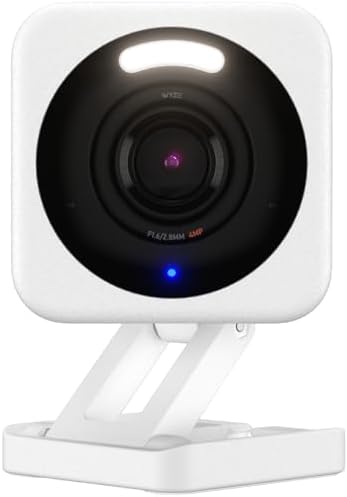
- SMART 2.5K QHD RESOLUTION — CAPTURE EVERY DETAIL — Record in crystal-clear 2560×1440 video with a 120° wide field of vie…
- ENHANCED COLOR NIGHT VISION — SEE CLEARLY IN TOTAL DARKNESS — Industry-leading Starlight Sensor paired with a 72-lumen s…
- IP65 WEATHERPROOF — BUILT FOR EVERY SEASON — Rated IP65 for dust-tight, water-jet-resistant protection against rain, sno…
Important features: Wyze lists 2.5K video, two-way talk, a siren and local microSD recording. It’s fixed, so there are no moving parts to hear.
Ease of setup: It supports only 2.4 GHz Wi-Fi, so check the home router before buying.
Family sharing: Wyze lets the owner share a camera to another Wyze account, but community posts show users wanting finer permission controls. Don’t expect Tapo-style tiers.
Subscription: Local recording works without a plan. AI alerts need Cam Plus.
Advantages: Low cost and no motor noise.
Disadvantages: A fixed view can miss parts of a room, and there’s a status light to consider. Keep the siren turned off for a grandparent’s home.
Who should buy it: Budget buyers watching a single spot.
Who should avoid it: Anyone who needs to follow a pet around a large room.
Enabot EBO Air 2 Plus – Best for Video Calls With Pets and Family
Overview: This isn’t a conventional camera. It’s a small wheeled robot that patrols, tracks pets and supports two-way video calls. Enabot’s EBO Air 2 Plus page lists two-way audio and video, smart patrol, AI tracking and a 3K camera.

- Stay Connected with Your Family: With two-way video, you're always part of every family moment. See their smiles, hear t…
- Chat with AI, Your Little Companion: Tap the top button to start chatting. EBO answers, tells stories, and keeps you com…
- Play with Your Pet, Even from Afar: Drive EBO Air 2 Plus pet camera to wherever they're hiding, napping, or waiting. Be …
Important features: The robot has a screen on its front, so family faces can appear on it. Enabot’s pages show a button on the robot’s head that starts a call, so a grandparent doesn’t need to touch a phone to start one. A one-tap privacy mode disables the camera and microphone. The cheaper EBO Air 2 is audio-only, so make sure you buy a video-capable model.
Ease of setup: Not independently confirmed for older adults. A UK reviewer describes the app as very good.
Family sharing: Enabot describes unified management of access rights and time restrictions across multiple accounts.
Subscription: It includes built-in storage plus a microSD card, expandable to 256GB. Cloud+ is an optional subscription.
Advantages: It’s the only option here that offers a real video-calling experience, plus a physical call button.
Disadvantages: It costs far more than the other cameras. Enabot lists roughly $349–$399, depending on the page. A UK reviewer found the video communication only moderately effective, and the robot can get stuck on rugs and corners. Docking was hit-and-miss and it can’t climb stairs.
Who should buy it: Families who want face-to-face calls and a one-story home.
Who should avoid it: Multi-story homes, thick-carpet homes, and anyone on a tight budget.
What Makes a Pet Camera Easy for Grandparents to Use?
Ease of use is about the whole experience, not one feature. Look for these:
- A simple mobile app. One tap should open a live view. Fewer menus mean fewer mistakes.
- Readable interfaces. We can’t verify button sizes from specs. Turn on large-text accessibility settings on the phone or tablet, and test the app before you hand over the device.
- Easy installation. Plug-in cameras are simpler than anything needing drilling or wiring. Our wireless vs wired camera guide explains the power tradeoffs.
- Reliable connections. Test Wi-Fi at the exact camera location, as our security camera buying guide advises.
- Clear audio. Poor audio makes a camera frustrating to use. Pick a spot near the pet’s usual area and away from loud appliances.
- Few notifications. A flood of alerts gets ignored. Start with the fewest alerts possible, and add them only if needed.
- Easy family sharing. The adult child should do the setup and invite the grandparent.
For broader context on cameras for pets, kids and older relatives, see our indoor camera guide for pets, kids and elderly care.
Pet Cameras With Two-Way Audio: What to Expect
All five picks support two-way audio, and one adds video. A few realities apply:
- Pets don’t always respond. Some dogs react to a familiar voice. Many cats ignore it. Treat tossing, as on the Furbo, gives dogs a reason to respond.
- Delay and echo happen. Petcube says an echo-reduction setting is on by default.
- Audio is not video. Only the Enabot Plus lets the pet side show a family face. On the others, family hears the pet, but the pet hears only a voice.
- Quiet hours matter. If the grandparent is a light sleeper, our guide to quiet pet cameras for light sleepers explains motors, lights and speaker sounds.
Why Pet Cameras With Family Sharing Matter for Grandparents
Sharing lets an adult child keep an eye on the camera and fix problems without visiting. The models here handle it differently:
- Furbo: one shared login. Simple, but everyone has the same access.
- Petcube: separate accounts with near-full control for family.
- Tapo: separate accounts with Basic or Live View Only permissions.
- Wyze: separate accounts with a limited feature set.
- Enabot: multiple accounts with access-rights controls.
We don’t claim any camera supports unlimited simultaneous viewers, because the sources we found don’t say that. TP-Link’s older sharing guide, for example, caps camera sharing at five accounts. Check each maker’s current limits.
How to Set Up an Easy Setup Pet Camera for Your Grandparents
If you can, do this during a visit. You’ll be on the grandparent’s Wi-Fi, with their phone or tablet in hand. If you can’t visit, ask a neighbor or relative to be your hands, and walk through the steps on a video call.
- Choose the location. Pick a shelf near the pet’s usual spot, above furniture height, near an outlet. Avoid bedrooms and bathrooms, and avoid pointing at a bright window.
- Connect power. Use the supplied adapter and plug into a wall outlet, not a power strip that someone might switch off.
- Download the official app. Use the App Store or Google Play, and check the publisher name.
- Connect to Wi-Fi. Have the Wi-Fi password ready. Some cameras only work on 2.4 GHz, such as the Wyze Cam v4. Petcube’s support site lists 5 GHz networks as a common setup problem.
- Configure camera settings. Start with the fewest alerts, turn off sirens, and insert a microSD card if the camera uses one.
- Enable two-way audio. Allow microphone access on the phone, and test the speaker volume together.
- Set up family access. Create the grandparent’s own account where the system supports it. Furbo uses a shared login instead.
- Test notifications and video. Walk out of the room, trigger an alert, and view the feed on the grandparent’s device and on mobile data.
- Troubleshoot basics. Unplug and replug the camera, move it closer to the router, check the Wi-Fi band, update the app, and confirm upload speed. If sharing breaks, remove and re-invite the account.
Are Subscription-Free Pet Cameras Better for Seniors?
Often, but not always. A recurring fee is one more bill to remember, and a lapsed plan can quietly turn off features. Local storage on a microSD card avoids that, and the Tapo C210, Wyze Cam v4 and Enabot all support it. The tradeoffs:
- Cloud plans keep footage if the camera is stolen and make remote review easier. They cost money every month.
- Local storage costs nothing monthly, but footage lives on a card that can fail.
- Feature gates: Petcube needs Care for clips and smart alerts, Furbo needs Dog Nanny for advanced alerts, and Wyze needs Cam Plus for AI alerts.
Our security camera buying guide explains how to compare total cost over several years.
Pet Camera Privacy and Security Tips for Older Adults
- Use strong, unique passwords. A password manager helps the adult child manage them.
- Turn on two-factor authentication where offered.
- Install firmware updates. The FTC recommends changing default passwords, updating software and securing your network in its guide to securing internet-connected devices.
- Secure the Wi-Fi. Use a strong router password and WPA2 or WPA3 encryption.
- Mind camera placement. Keep cameras out of bedrooms and bathrooms, and tell visitors a camera is present.
- Review account sharing. Remove old invitations. With Furbo, the shared password means anyone who has it has full access.
- Use privacy settings. The Enabot has a one-tap privacy mode. Unplugging any plug-in camera also turns it off.
Our smart home security essentials guide covers network hardening in more depth. A pet camera is not a medical alert device and can’t detect falls.
Alternatives for Grandparents Who Struggle With Smartphones
- A tablet. A tablet with a large screen and a single app on the home screen is often easier than a phone.
- A smart display. Amazon says you can say a command like “Alexa, show the front door” to display a compatible camera on an Echo Show. Compatibility varies by camera, so check the camera’s Alexa support before buying.
- A physical button. The Enabot robot has a call button, which is the closest thing here to a phone-free control.
- Let family do the watching. Some grandparents are happier with a camera that family manages, and a phone call afterward.
How to Choose the Right Pet Camera for Your Grandparents
- Best for beginners: Furbo 360° Dog Camera for dog owners, or Petcube Cam 360 for cats or dogs. Both have simple, documented setup and sharing.
- Best for two-way communication: Enabot EBO Air 2 Plus, the only one here with video calls.
- Best budget option: Wyze Cam v4 or Petcube Cam 360. Both sit at the low end of the price range in our sources.
- Best for family sharing: TP-Link Tapo C210, for its Live View Only option.
- Best subscription-free option: Tapo C210 or Wyze Cam v4, using microSD storage.
- Best for larger single-floor homes: Enabot EBO Air 2 Plus, which can move room to room. Stairs stop it.
These labels reflect documented features, not hands-on testing.
Frequently Asked Questions
What is the easiest pet camera for grandparents to use?
There is no single winner. Furbo and Petcube both have simple, documented setup and sharing. If your grandparent prefers a physical button over an app, the Enabot robot has one.
Can grandparents talk to their pets through a pet camera?
Yes. All five cameras here support two-way audio. Only the Enabot EBO Air 2 Plus also offers two-way video.
Do pet cameras require a monthly subscription?
Not for basic viewing on most models. Recording, history and smart alerts often need a plan. The Tapo C210 and Wyze Cam v4 can record to microSD without one.
Can multiple family members watch the same pet camera?
Usually, yes. Furbo shares one login, while Petcube, Tapo, Wyze and Enabot support separate accounts. Check each maker’s current account limits.
Do pet cameras work without Wi-Fi?
The cameras here need Wi-Fi for remote viewing. Cameras with local storage may keep recording during an internet outage, but you won’t be able to view them remotely until the connection returns.
Are pet cameras easy for seniors to install?
Plug-in cameras are generally manageable, but Wi-Fi setup is the hard part. Having an adult child do the setup during a visit is the easiest route.
Can grandparents use pet cameras without a smartphone?
Most still need an app for setup. After that, a tablet, an Echo Show with a compatible camera, or the Enabot’s call button can reduce phone use.
What is the best pet camera for elderly pet owners?
It depends on the pet and the person. Furbo suits dog owners who want treats, Petcube suits a simple live view, Tapo suits families who want to limit permissions, and Enabot suits video calls.
Final Verdict
There’s no universal best pick, so match the camera to the person:
- Simplest for a dog owner: Furbo 360° Dog Camera, accepting the shared-password tradeoff.
- Simplest live view for cats or dogs: Petcube Cam 360.
- Most control over what a grandparent can touch: TP-Link Tapo C210.
- Lowest cost for one spot: Wyze Cam v4.
- Real video calls and a physical button: Enabot EBO Air 2 Plus, if the home is single-floor and the budget allows.
We haven’t tested any of these. Test the app on your grandparent’s device, and keep the return window in mind.