
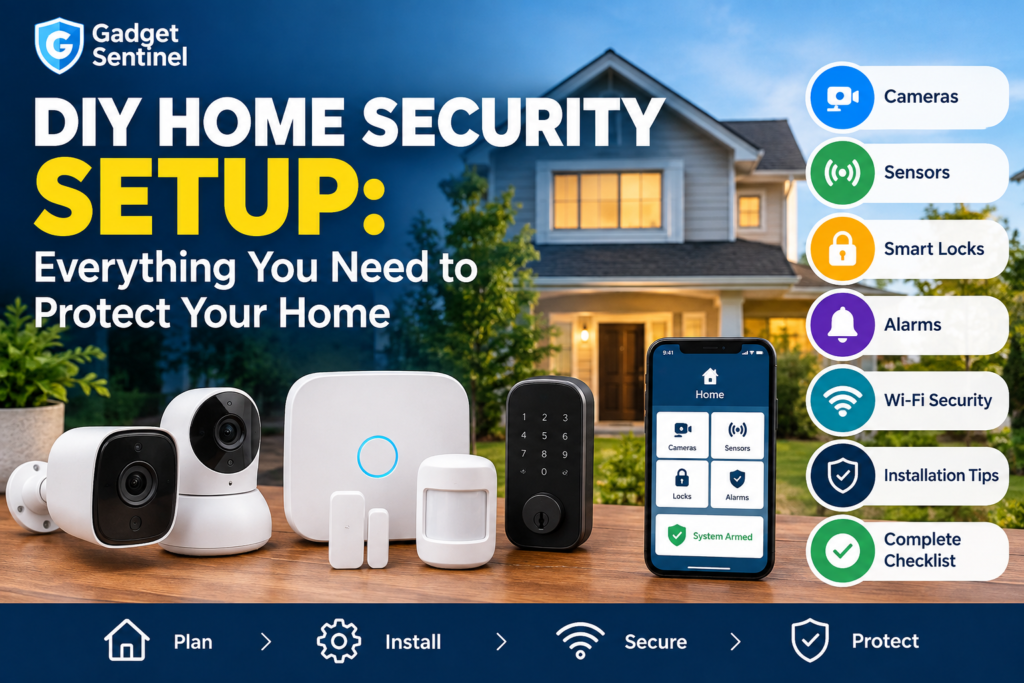
A DIY home security setup is a self-installed system of cameras, sensors, and alarms that you plan, buy, and configure yourself — no professional installer required. Done well, it covers every entry point in your home, alerts you the moment something happens, and keeps working even if your Wi-Fi or power drops. Done poorly, it’s a pile of gadgets that don’t talk to each other and a camera pointed at your porch.
The difference isn’t the brand of equipment you buy. It’s whether you plan before you shop, place devices with intention, and test the system the way you’d test a smoke alarm — regularly, and before you actually need it.
This guide walks through the entire process: assessing your home, choosing the right mix of devices, installing and connecting everything, configuring alerts you’ll actually pay attention to, and keeping the system reliable for years. No security setup can guarantee a break-in will never happen — but a properly built one meaningfully increases detection, deters casual intruders, and buys you time to respond.
Quick Answer: What’s in a Complete DIY Home Security Setup? A full DIY home security setup typically includes a hub or app-based base station, door and window sensors on every ground-floor entry, one or more motion sensors, at least one outdoor camera at the front door, a video doorbell, a siren or alarm, and — for most homes — smoke/CO detection and a water leak sensor. Backup power and backup internet (like a cellular failover) round out the system so it still works during an outage.
What Is a DIY Home Security System?
A DIY home security system is hardware and software you select, install, and manage yourself, typically through a smartphone app rather than a wall-mounted keypad and a technician’s visit. It sits in contrast to a professionally installed security system, where a company sends someone to run wiring, mount devices, and program the panel for you — usually at a higher upfront cost.
Separately from installation, there’s the question of monitoring:
- Self-monitored home security means alerts go straight to your phone, and you decide whether to check a camera, call a neighbor, or call the police yourself.
- Professional monitoring means a monitoring center receives the alert (often only after cellular or landline backup is in place) and follows an escalation process, which may include contacting you first and then emergency services. Exact procedures, response times, and guarantees vary by provider and plan — no company can promise a specific dispatch outcome, so read the plan details before assuming what’s included.
Most DIY systems today support either model: self-monitor for free, or add a paid plan for professional monitoring, cloud video storage, or both.
What Do You Need for a DIY Home Security Setup?
What do you need for a DIY home security system? At minimum, you need a hub or app to tie devices together, door and window sensors on your main entry points, one motion sensor for a high-traffic area, and one outdoor camera. A more complete setup layers in a video doorbell, smart locks, an alarm/siren, environmental sensors, and backup power and connectivity.
| Device | What It Protects | Where to Use It | Essential or Optional |
|---|---|---|---|
| Hub / base station | Coordinates all devices, sounds local alarm | Central, interior location | Essential |
| Door & window sensors | Detects forced or opened entry points | All ground-floor doors and windows | Essential |
| Motion sensors | Detects movement inside a room or zone | Hallways, main living areas, basements | Essential |
| Security cameras | Visual verification and recording | Front door, driveway, backyard, garage | Essential |
| Video doorbell | Visitor identification, package monitoring | Front entry | Essential |
| Smart locks | Keyless, trackable entry control | Front and back doors | Optional |
| Siren / alarm | Deters intruders, alerts household | Central hub or standalone unit | Essential |
| Security lighting | Deters intruders, improves camera footage | Entry points, driveway, backyard | Optional |
| Smoke / CO detection | Fire and carbon monoxide alerts | Every level, near bedrooms | Essential (safety) |
| Water leak sensors | Detects leaks before major damage | Basement, water heater, under sinks | Optional |
| Backup power | Keeps hub/cameras running during outages | Built into hub or added battery/UPS | Essential |
| Backup connectivity | Keeps alerts flowing if Wi-Fi fails | Cellular backup module or hotspot | Recommended |
| Local/cloud storage | Stores camera footage for review | SD card, hub storage, or cloud plan | Essential (pick one) |
Start With a Security Walkthrough
Before you buy anything, walk your property like someone trying to break in would. This is the step most guides skip, and it’s the one that actually determines what you need.
Go room by room and note:
- Front door — Is it visible from the street? Does it have a solid deadbolt?
- Back door — Often the least visible, most commonly targeted entry point.
- Garage — Side door, the connecting door to the house, and the automatic opener itself.
- Ground-floor windows — Any without locks, or hidden behind bushes/fences?
- Basement — Walkout doors, window wells, and utility access points.
- Driveway — Sightlines to the street, package delivery area.
- Side entrances — Gates, side doors, less-trafficked paths.
- Backyard — Fence gaps, sliding doors, dark corners.
- Valuables/high-risk areas — Home office, safe, jewelry, or a detached garage/shed.
Identifying entry points before buying equipment prevents the most common DIY mistake: ending up with three cameras aimed at the same porch and zero coverage on the back door.
Build Your Security in Layers
A reliable DIY security system doesn’t rely on one device to do everything. Think in layers, each with a distinct job:
- Deter — Visible cameras, yard signs, and motion-activated lighting discourage casual intruders before they try anything.
- Detect — Door/window sensors and motion sensors notice the moment something is disturbed.
- Verify — Cameras let you (or a monitoring center) confirm whether an alert is a real threat or the cat.
- Delay/Control — Solid locks, reinforced door frames, and smart locks slow down forced entry and buy time.
- Respond — Sirens, notifications, and — if you have it — professional monitoring turn detection into action.
A camera alone only covers “detect” and “verify.” A full setup touches all five layers.
DIY Home Security Setup by Area
- Front door: Video doorbell plus a door sensor; this is the highest-traffic entry point and the one most visible to a would-be intruder.
- Back door: Door sensor is non-negotiable; add a camera if the layout allows a clear, weatherproof mounting spot.
- Windows: Sensors on every ground-floor window, prioritizing those hidden from street view.
- Garage: Sensor on the side door and the vehicle door; consider a dedicated garage camera if it houses tools or a second entry to the house.
- Driveway: A wide-angle camera catches vehicles and porch deliveries in one shot.
- Backyard: Motion-activated lighting plus a camera covering the most likely fence or gate access point.
- Hallways: A single motion sensor covers a surprising amount of interior square footage.
- Main living areas: Motion sensor for “away mode” coverage; skip cameras here for daily-use rooms unless there’s a specific reason.
- Basement: Door/window sensors on any walkout access, plus a water leak sensor near the water heater.
- Home office: Motion sensor is usually sufficient; a camera is optional and should not double as workplace surveillance for other household members without their knowledge.
Don’t put cameras in bedrooms, bathrooms, or other private spaces. Beyond the obvious privacy issue, indoor cameras in personal rooms usually protect very little that a door sensor and a general living-area motion sensor don’t already cover.
How to Choose Security Cameras
A handful of decisions determine which camera fits which spot:
- Indoor vs. outdoor — outdoor units need a weatherproof rating; indoor units don’t.
- Wired vs. wireless — wired cameras draw continuous power and often support local storage; wireless (Wi-Fi) cameras are easier to place but depend entirely on your network.
- Battery vs. wired power — battery cameras are the fastest to install but need periodic recharging.
- Field of view — a wider angle covers more ground but can distort distance; match it to the space.
- Night vision — infrared range matters more than resolution after dark.
- Motion detection — basic motion alerts on any movement; better systems reduce false alarms.
- Person/vehicle detection — smarter filtering that cuts down notifications for tree branches and passing cars.
- Local vs. cloud storage — covered in detail below.
- Wi-Fi requirements — cameras need consistent bandwidth; check the manufacturer’s minimum upload speed per camera before buying multiple units, since usage adds up (official Nest camera bandwidth documentation is a useful benchmark: roughly 2 Mbps upload per camera at 1080p, more during motion).
- Weather resistance — an IP65 or higher rating for anything mounted outside.
- Privacy zones — the ability to mask windows, neighboring yards, or shared walkways.
- Subscription requirements — some features (person detection, extended cloud history) are locked behind a paid plan; check before assuming a feature is included.
For a deeper breakdown of wired versus wireless tradeoffs specifically, see Gadget Sentinel’s home security system overview, and our dedicated comparison [Wireless vs. Wired Security Cameras: Which One Should You Buy?] (insert verified live Gadget Sentinel URL here — not found in search; do not publish with a placeholder link).
Where Should You Place Security Cameras?
- Front door: Eye level or slightly above, angled to capture faces, not just the top of someone’s head.
- Driveway: High enough to avoid tampering, wide enough to catch the full width of the driveway.
- Backyard: Cover the most likely access point (gate or fence gap) rather than the whole yard.
- Side entrance: Aim down the length of the walkway, not straight across it.
- Garage: Cover the door itself plus a few feet of approach.
- Interior entry areas: A single camera near the main entry can substitute for one in every hallway.
General placement rules: mount cameras 8–10 feet high to deter tampering, avoid pointing directly into rising or setting sun (glare washes out footage), check for blind spots created by trees, fences, or trellises, add motion lighting for cameras that rely on visible-light rather than infrared, confirm Wi-Fi signal strength at the mounting spot before committing, and mask any view into a neighbor’s window or yard as a privacy courtesy — and in some jurisdictions, a legal requirement.
Where Should You Place Door and Window Sensors?
Door and window sensors work in two aligned parts — one on the frame, one on the moving door or sash — and trigger when the two separate. Keep the gap between them within the manufacturer’s spec (usually under an inch) or the sensor won’t register reliably.
| Entry Point | Recommended Sensor | Priority |
|---|---|---|
| Front door | Door/window contact sensor | High |
| Back door | Door/window contact sensor | High |
| Sliding glass door | Sensor rated for sliding tracks | High |
| Ground-floor windows | Door/window contact sensor | High |
| Garage entry door | Door/window contact sensor | High |
| Garage vehicle door | Tilt or garage-specific sensor | Medium |
| Basement walkout | Door/window contact sensor | High |
| Upper-floor windows | Door/window contact sensor | Low–Medium |
| Interior closets/safes | Contact sensor (optional) | Low |
How to Install a DIY Home Security System
- Install the hub in a central location with strong Wi-Fi coverage, away from metal objects or appliances that can interfere with signal.
- Connect the app/account and register the hub before adding any other devices.
- Install door/window sensors on every entry point identified in your walkthrough.
- Install motion sensors in hallways and main living areas.
- Install cameras at the locations you mapped out, checking Wi-Fi signal at each spot first.
- Install the video doorbell, matching wiring type (existing doorbell wiring vs. battery-only) to the model you bought.
- Configure smart locks, including user codes for household members.
- Configure the alarm/siren, testing volume and placement so it’s audible throughout the home.
- Add environmental sensors — smoke/CO and water leak — in the locations covered above.
- Configure notifications so alerts go to the right people without overwhelming everyone.
- Create Home/Away/Night modes so sensors behave differently depending on who’s home and when.
- Test everything using the checklist later in this guide.
Every device has manufacturer-specific mounting, wiring, and pairing steps — always follow the instructions included with your specific hardware, since screw placement, sensor gap tolerances, and pairing sequences vary by brand.
Wi-Fi and Internet Setup for DIY Security
A security system is only as reliable as the network carrying its alerts. Router placement matters: keep it central and elevated, away from thick walls and large metal appliances that create dead zones. If your home has rooms where a phone consistently shows one or two bars, a mesh Wi-Fi system will do more for your security setup than any single piece of hardware.
Most security cameras and sensors run on the 2.4 GHz band rather than 5 GHz, because 2.4 GHz travels farther through walls, even though it carries less bandwidth. Check your specific device’s supported band before setup — connecting to the wrong band is one of the most common DIY installation failures.
Camera bandwidth adds up fast: each 1080p camera streaming live or recording can use several hundred kilobits to a few megabits per second, more when there’s motion in frame. Multiple cameras plus normal household streaming can saturate a modest connection, causing dropped clips or delayed alerts.
Because physical security now depends on network uptime, plan for two kinds of failure:
- Internet outages — a hub with cellular backup or local storage keeps recording and, in some cases, keeps alerting even if your ISP goes down.
- Power outages — a hub with a built-in battery backup, or cameras on a small UPS, keeps the system running through a short outage; check how many hours of backup runtime your specific hub provides.
Local Storage vs. Cloud Storage
| Factor | Local Storage | Cloud Storage |
|---|---|---|
| Convenience | Manual access via app/hub | Access from anywhere, any device |
| Privacy | Footage stays on your property | Footage stored on provider’s servers |
| Subscription cost | Usually none, or one-time hardware cost | Often a recurring monthly/annual fee |
| Remote access | Limited or none without internet | Available as long as you have internet |
| Reliability | Vulnerable to theft/damage of the device itself | Vulnerable to provider outages or account issues |
| Storage capacity | Fixed by SD card/hub capacity | Typically scalable with paid tiers |
Neither option is universally better — a DIY home security system without monthly fees generally means leaning on local storage, while cloud storage trades a subscription cost for off-site backup and easier remote access.
Self-Monitoring vs. Professional Monitoring
Self-monitoring puts you in charge: alerts land on your phone, and you decide what to do next. It’s free with most systems and works well if you’re generally near your phone.
Professional monitoring routes alerts to a monitoring center, typically for a monthly fee. Notification responsibility shifts partly to the provider, but exact procedures — whether they call you first, how quickly they escalate, and what “emergency dispatch” actually means — vary by company and by plan. Some plans include cellular backup so monitoring continues during a Wi-Fi outage; others require it as an add-on.
Don’t assume professional monitoring guarantees a police response time or outcome — that depends on the monitoring company’s process and local emergency services, not the security hardware itself. Read the specific plan’s terms rather than relying on marketing language.
DIY Home Security Setup for Different Budgets
Starter Setup — Hub, 2–3 door/window sensors on the most vulnerable entries, one motion sensor, and one outdoor camera at the front door. Enough to cover the highest-risk points without a big upfront investment.
Balanced Setup — Adds a video doorbell, sensors on every ground-floor door and window, 2–3 outdoor cameras (front, back, driveway), a siren, and basic smoke/CO coverage.
Whole-Home Setup — Full sensor coverage on every level, 4+ cameras including backyard and garage, smart locks, water leak sensors, cellular backup, and either professional monitoring or a robust self-monitoring routine.
Focus on equipment categories rather than chasing a specific brand — the right combination of sensors, cameras, and backup systems matters more than any single “best” device, and current pricing shifts often enough that it’s worth checking manufacturer sites directly before buying.
Privacy and Cybersecurity for Your DIY Security System
A security system that isn’t secured against digital intrusion is a liability, not a protection. The basics:
- Unique passwords for every device and account — never reuse a password across your hub, cameras, and router.
- MFA/2FA on every account that supports it.
- Firmware updates applied as soon as they’re released; outdated firmware is one of the most common paths attackers use to compromise smart home devices, according to guidance from the Cybersecurity and Infrastructure Security Agency (CISA).
- Account permissions — review who has access periodically, especially after a house-sitter, contractor, or ex-roommate has had temporary access.
- Secure Wi-Fi — change your router’s default password and enable WPA2 or WPA3 encryption, and consider putting security devices on a separate guest network so a compromised camera can’t reach your laptop or financial accounts.
- Privacy zones and thoughtful camera placement, as covered above.
- Local vs. cloud storage tradeoffs, chosen deliberately rather than by default.
- Removing unused users/devices from your hub’s app whenever a device is replaced or a person no longer needs access.
The National Institute of Standards and Technology (NIST) recommends knowing exactly which devices are on your network and disabling any features you don’t actually use — a good habit to build into your setup from day one.
Common DIY Home Security Mistakes
- Buying cameras before completing a walkthrough of entry points.
- Ignoring doors and windows in favor of cameras alone.
- Poor camera placement that leaves blind spots or glare-washed footage.
- Relying entirely on Wi-Fi with no backup plan for an outage.
- Ignoring power outages — no battery backup on the hub.
- Too many notifications, which trains you to ignore all of them, including real ones.
- Never testing sensors after the initial install.
- Weak account security — reused or simple passwords.
- Putting cameras in inappropriate private areas like bedrooms or bathrooms.
- Forgetting ongoing maintenance — batteries, firmware, lens cleaning.
- Buying incompatible devices that don’t work with your chosen hub or app ecosystem.
For a deeper look at how these mistakes play out in real installations, see Gadget Sentinel’s [Home Security Mistakes That Could Make Your House an Easy Target] (insert verified live Gadget Sentinel URL here — not found in search; do not publish with a placeholder link).
How to Test Your DIY Home Security System
- [ ] Test every door sensor by opening and closing each entry
- [ ] Test window sensors the same way
- [ ] Walk through every motion zone to confirm detection
- [ ] Test camera live view from outside your home network
- [ ] Test recording and confirm footage saves correctly
- [ ] Test night vision after dark
- [ ] Test notifications on every household member’s phone
- [ ] Test the siren for audibility throughout the home
- [ ] Test battery backup by briefly unplugging the hub
- [ ] Test internet-loss behavior by disconnecting Wi-Fi
- [ ] Check camera footage for blind spots in daylight and at night
- [ ] Test the smart lock’s app control and any physical backup key
- [ ] Verify all household users have correct app access and codes
DIY Home Security Maintenance Checklist
Weekly: Glance through recent camera clips for coverage gaps; confirm the app shows all devices online.
Monthly: Test the siren and all motion sensors; check smoke/CO detector test buttons; clean camera lenses.
Every 3–6 months: Replace sensor and lock batteries proactively rather than waiting for a low-battery alert; review who has app and lock access; re-check camera angles after any landscaping changes.
Annually: Update firmware across all devices if not set to auto-update; reassess coverage after any renovation, new fence, or landscaping; review your monitoring plan and subscription costs; replace smoke alarms per manufacturer guidance (most brands specify a 10-year replacement cycle, consistent with placement and maintenance guidance from the U.S. Fire Administration).
When DIY Home Security May Not Be Enough
DIY covers most homes well, but a few situations call for professional help or specialized expertise:
- Complex wired systems spanning many rooms or requiring in-wall cabling.
- Major electrical work, such as hardwiring a siren or running new circuits.
- Large properties with extensive perimeter coverage needs.
- Difficult camera cabling through finished walls, ceilings, or multiple stories.
- Specialized security requirements, such as a home business handling sensitive materials, or a property with a documented, elevated threat.
None of this means DIY is inadequate for most households — it just means recognizing when a licensed electrician or professional installer saves time, reduces risk, or handles code requirements a DIY approach can’t.
Complete DIY Home Security Checklist
[ ] Walk the property and log every entry point
[ ] Choose a hub/app ecosystem before buying devices
[ ] Sensor every ground-floor door and window
[ ] Add at least one motion sensor for interior coverage
[ ] Install a camera at the front door and driveway
[ ] Add a video doorbell
[ ] Decide: local storage, cloud storage, or both
[ ] Add smoke/CO detection on every level
[ ] Add a water leak sensor near major risk areas
[ ] Set up backup power for the hub
[ ] Set up backup connectivity if your budget allows
[ ] Configure Home/Away/Night modes
[ ] Secure Wi-Fi and every device account
[ ] Test every device before relying on the system
[ ] Set a recurring maintenance schedule
Frequently Asked Questions
What do I need for a DIY home security system? At minimum: a hub or app, door/window sensors on main entry points, one motion sensor, and one outdoor camera. A complete setup adds a video doorbell, smart locks, a siren, environmental sensors, and backup power and connectivity.
Can I install a home security system myself? Yes. Most modern DIY systems are designed for self-installation with no wiring beyond mounting screws and, in some cases, existing doorbell wiring. Always follow the manufacturer’s specific instructions for each device.
How many security cameras do I need? Most homes are well covered with 3–5 cameras: front door, driveway, back door or backyard, and garage. Larger properties or homes with multiple access points may need more.
Where should I place home security cameras? Focus on entry points — front door, back door, garage, driveway — rather than trying to cover every square foot of the property. Mount at 8–10 feet, avoid glare, and check for blind spots.
Are DIY security systems worth it? For most homeowners and renters, yes — they’re significantly cheaper than professionally installed systems and offer comparable core coverage. They require more setup effort and ongoing maintenance on your part.
Can I have a DIY security system without a monthly fee? Yes. Choosing local storage over cloud storage and self-monitoring over professional monitoring eliminates recurring fees, though you’ll manage alerts and footage review yourself.
What happens if Wi-Fi goes down? Without a backup plan, most cameras stop streaming and alerts stop sending. A hub with cellular backup, or cameras with local SD storage, keeps the system functioning during an outage.
Do DIY security systems work during a power outage? Only if the hub and critical devices have battery backup. Battery-powered cameras and sensors typically keep working; wired devices without backup power will go offline.
Should I use local or cloud video storage? Local storage avoids subscription fees and keeps footage on your property; cloud storage offers remote access and off-site backup at the cost of a recurring fee. Many households use both.
How often should I test my home security system? Test sensors and cameras monthly, and run a full system test — including battery and internet-loss behavior — every few months or after any change to your home’s layout or network.
Pingback: Best Home Alarm Systems Without Professional Monitoring - Gadget Sentinel
Pingback: Security Camera Buying Guide: Everything You Need to Know Before You Buy - Gadget Sentinel
Pingback: SimpliSafe Home Security Review 2026: Is It Worth the Money? - Gadget Sentinel
Pingback: How Much Does a Home Security System Cost in 2026? Complete Price Guide - Gadget Sentinel
Pingback: DIY vs Professional Home Security Systems: What's the Difference in 2026? - Gadget Sentinel