
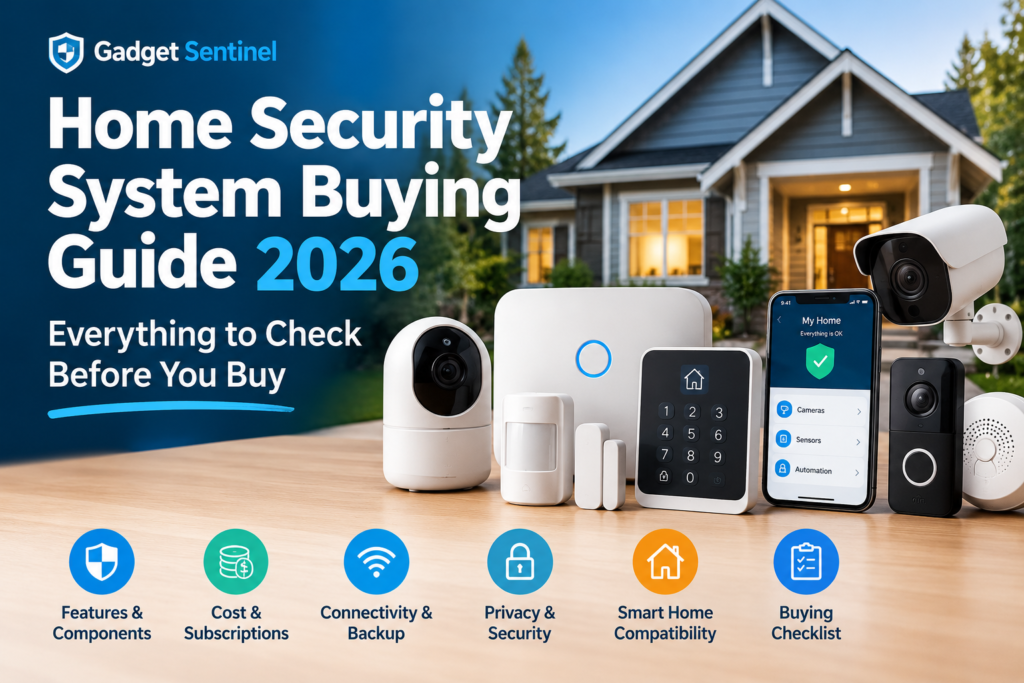
Updated October 8, 2026 · Gadget Sentinel Buying Guides
Most people shop for a security system by comparing brands. That order causes the expensive mistakes. The wrong purchase usually comes from questions nobody asked: Will it still alert me when the Wi-Fi drops? Which features sit behind a subscription? Who covers the back door that no one can see from the street?
This home security system buying guide is built around those questions. Work through it before you buy, and you will know what your home needs, what to skip, and what to ask any seller.
How this guide was sourced: Gadget Sentinel did not run hands-on tests for this article. Facts come from official government and manufacturer documentation and from Consumer Reports’ published buying guidance, and we separate fact from advice. Prices and plan terms change often, so confirm every number on the provider’s own site before you order.
Home Security System Buying Guide: The 60-Second Version
What should I look for when buying a home security system?
Look for coverage that fits your home’s doors, windows, and blind spots; a monitoring option you will actually use; battery and cellular backup for outages; clear pricing that includes subscriptions; strong account security; and compatibility with the smart-home devices you already own.
The seven checks that matter most:
- Coverage. Count your real entry points before you look at kits.
- Monitoring. Decide whether you will respond to alerts yourself or pay someone to.
- Outage behavior. Confirm what works without power and without internet.
- Total cost. Add hardware, subscriptions, storage, and batteries over 3–5 years.
- Installation. Match DIY or professional setup to your skills, your lease, and your home.
- Security and privacy. Look for two-factor authentication, encryption, and update support.
- Ecosystem fit. Check Alexa, Google Home, Apple Home, and your locks before buying in.
What Is a Home Security System?
“Home security system” is a loose label. Vendors use it for very different products, which is why two “systems” at the same price can protect you in completely different ways.
| Term | What it is | What it does not do by itself |
|---|---|---|
| Alarm system | A hub (base station), sensors, and a siren. Sensors detect an opened door or motion, and the siren sounds. | Record video, unless you add cameras. |
| Security camera system | One or more cameras that record or stream video, often with motion alerts. | Sound an alarm or detect an opened door. |
| Smart home security system | An alarm and/or cameras that also control locks, lights, and thermostats through an app or voice assistant. | Guarantee coverage. “Smart” describes control, not protection. |
| Professionally monitored system | Any system where a monitoring center receives alarm signals around the clock and contacts you or emergency services. | Work without a paid plan, in most cases. |
| Self-monitored system | A system that sends alerts to your phone. You decide what to do. | Call police or fire for you. |
Most modern products blend these categories. Consumer Reports notes that many systems also act as smart-home hubs, which is why the decisions below matter more than the label on the box.
How to Choose a Home Security System
Work through these ten questions in order. Each answer narrows the field before you look at a single product page.
1. What are you protecting? A first-floor apartment, a family home with a garage, and a detached workshop need different layers. Note valuables, pets, children, and anyone who is home alone.
2. How many entry points do you have? Count every door, ground-floor window, sliding door, garage door, and window reachable from a roof or porch. This number drives your sensor list.
3. Do you need cameras? Sensors tell you something opened. Cameras tell you what happened. If you want to verify alerts before calling anyone, a camera or doorbell camera is worth adding.
4. DIY or professional installation? DIY suits renters and anyone comfortable pairing devices in an app. Professional installation suits large homes, wired systems, and buyers who want one visit and one number to call.
5. Self-monitoring or professional monitoring? Be honest about whether you will see and act on a phone alert at 3 a.m. or while traveling.
6. Do you need smart-home integration? If you already use Alexa, Google Home, or Apple Home, that decides which brands fit.
7. What happens if Wi-Fi fails? Ask whether the system alerts you over cellular, or whether it goes quiet.
8. What happens if power fails? Ask how many hours the hub runs on battery and whether your router and cameras lose power.
9. How much can you spend upfront? Contract-based systems cost less on day one and more over time. DIY kits cost more on day one and usually less over time.
10. What recurring fees are acceptable? Set a monthly ceiling now. It will rule out many plans quickly.
The Main Components of a Home Security System
Not every home needs every device. This table says who actually needs each one.
| Component | What it does | Who needs it |
|---|---|---|
| Base station / hub | The brain. Connects sensors, sounds a siren, and talks to the internet. | Everyone with a sensor-based system. Check for battery and cellular backup. |
| Keypad | Arms and disarms without a phone. | Households with kids, guests, or anyone who does not carry a phone. |
| Door and window sensors | Detect when an entry opens. | Nearly everyone. These are the core of any alarm. |
| Motion sensors | Detect movement inside a room or hallway. | Open floor plans, basements, or anyone wanting an interior layer. Choose pet-tolerant models if you have pets. |
| Glass-break sensors | Listen for the sound of breaking glass. | Rooms with large windows or sliding doors. Optional elsewhere. |
| Indoor cameras | Show what triggered an alert; check on pets or relatives. | Optional. Best at main entry routes, not bedrooms or bathrooms. |
| Outdoor cameras | Watch driveways, yards, and side access. | Homes with hidden approaches or detached buildings. |
| Video doorbells | Show visitors and packages at the front door. | Most homes. Often the first camera worth buying. |
| Sirens | Add volume beyond the hub’s built-in siren. | Large or multi-story homes. |
| Smart locks | Lock and unlock by app or code. | Anyone who shares access or forgets to lock up. A smart lock does not replace a solid door and frame. |
| Smoke detectors | Warn of fire. | Everyone. A standalone detector always works; monitored versions add value when you are away. |
| Carbon monoxide detectors | Warn of CO from fuel-burning appliances. | Homes with gas appliances, a fireplace, or an attached garage. |
| Water leak and freeze sensors | Warn of leaks or low temperatures. | Basements, water heaters, cold climates, and second homes. |
| Panic buttons | Send a manual alert. | Older adults, people with medical risk, or home offices. |
On fire safety, the National Fire Protection Association advises testing smoke alarms monthly and replacing each one after 10 years. Its smoke alarm guidance also covers where to place them.
How Many Sensors and Cameras Do You Need?
Start with entry points, not square footage. The ranges below are planning starting points drawn from published manufacturer and retailer guidance and our own editorial analysis. They are not lab-tested figures.
| Home type | Entry sensors | Motion sensors | Cameras (including doorbell) |
|---|---|---|---|
| Apartment | 2–3 | 1 | 1–2 |
| Small house | 4–6 | 1–2 | 2–4 |
| 2-story house | 6–10 (ground-floor entries plus any reachable upper window) | 1 per floor | 4–6 |
| Large house | 10+ | Several, plus a range extender | 6–10+ |
| Home with garage | Add the garage-to-house door and the vehicle door | Optional | Add 1, aimed at the driveway or garage door |
| Detached property | Separate sensors on the outbuilding | Optional | Add 1–2, and check Wi-Fi or hub range there |
How to find vulnerable entry points and blind spots. Walk the property once in daylight and once after dark:
- List every door, gate, and ground-floor window a person could open.
- Mark windows reachable from a porch roof, balcony, tree, or fence.
- Stand at each spot and ask whether any camera would see you.
- Trace the route from the street to each entry. Note where you would disappear from view.
- Check what is too dark, too bright, or hidden behind shrubs.
Placement beats quantity. One wide-angle camera that covers two zones is better than two cameras aimed at the same porch. For a step-by-step method, see Gadget Sentinel’s guide on how many security cameras your home really needs, which walks through a camera-count formula and a five-minute coverage test.
DIY vs Professional Installation
| DIY | Professional installation | |
|---|---|---|
| Upfront cost | Lower | Often higher, or bundled into a contract |
| Setup | You mount and pair devices, usually in an afternoon | A technician places devices and programs the system |
| Moving or expanding | Easy. Take it with you and add parts at retail | Harder. Some equipment is tied to the provider |
| Placement quality | Depends on your planning | Often better on complex layouts |
| Troubleshooting | You handle it, with support from the maker | Service visits may be available, sometimes for a fee |
| Contracts | Usually none | Common, often 2–5 years |
Choose DIY if you rent, move often, are comfortable with apps, or want to avoid long contracts. Consumer Reports notes that DIY systems tend to be easier to customize and expand over time.
Choose professional installation if you have a large or complex home, want wired components, or prefer a single appointment and a technician to call. Some providers, such as Vivint and Alarm.com dealers, require professional setup.
The typical DIY risks are poor placement and skipped testing. Gadget Sentinel’s DIY home security setup guide covers placement, Wi-Fi planning, and a post-install test list.
Self-Monitoring vs Professional Monitoring
What happens when an alarm triggers.
Self-monitored: A sensor trips. The siren sounds. Your phone gets a notification, if your plan includes one. You check a camera, call someone at home, or call emergency services yourself. Nothing happens automatically after the siren.
Professionally monitored: The hub signals a monitoring center. Operators follow a verification process, which usually includes calling you, and then contact emergency services if needed. Procedures and response times vary by provider and plan, and no company can promise a specific police response.
The key point: with self-monitoring, you remain the responder. If you miss the alert, no one steps in.
| Factor | Self-monitoring | Professional monitoring |
|---|---|---|
| Who responds | You | A monitoring center, then you and emergency services |
| Monthly cost | Often $0, though some brands charge for app alerts | Consumer Reports’ survey found $15–$53 per month across brands |
| Emergency calls | You make them | The center requests dispatch |
| Phone alerts | Usually yes | Yes |
| False alarms | You verify and dismiss them | The center verifies; some cities charge fees or require permits |
| Travel or night shifts | Risky if you cannot see alerts | Stronger fit |
| Contracts | Rare | Varies. Many DIY brands are month-to-month |
Consumer Reports’ home security system buying guide frames the trade-off plainly: self-monitoring saves money, but a missed phone alert can give an intruder time. Many self-monitored systems also offer optional or on-demand professional monitoring, so you can start free and upgrade later.
If you want to skip the monthly fee, Gadget Sentinel’s roundup of home alarm systems without professional monitoring compares what each brand still does for free. Some “no-fee” systems send phone alerts. Others, like Ring Alarm in the US, can only arm from the keypad and sound a local siren without a plan, according to Ring’s support page.
Pick professional monitoring if you travel often, sleep through notifications, have limited cell coverage, or care most about fire and medical response. Self-monitoring fits if you reliably see alerts, have a trusted contact who can check on the house, and want to avoid recurring fees.
Home Security System Costs in 2026
The sticker price is one line item. Total cost of ownership has seven.
- Hardware. Consumer Reports notes that starter kits advertised at $200–$400 can easily pass $1,000 once you add what you actually need. A single contact sensor runs about $15–$50 and a camera about $35–$200.
- Installation. Free to several hundred dollars for professional service, sometimes waived with a contract.
- Monitoring. $0 to roughly $50+ per month, depending on provider and plan.
- Cloud storage. Often a per-camera or per-home subscription.
- Accessories. Mounts, extra keypads, sirens, range extenders, solar panels.
- Batteries. Sensors and cameras need replacement or recharging.
- Future expansion. Extra sensors and cameras added over time.
Gadget Sentinel’s home security system cost guide breaks these into ranges by home size and brand, including contract terms and early-termination fees. Treat any range as a starting point and verify it on the provider’s site.
Why the cheapest system is not always the cheapest. A low upfront price paired with a mandatory plan can cost more by year three than a pricier kit with free local storage. Here is a simple, hypothetical comparison. These numbers are illustrations, not quotes.
| Scenario | Upfront | Monthly | 3-year total | 5-year total |
|---|---|---|---|---|
| A. Cheap kit + required cloud plan | $180 | $12 | $612 | $900 |
| B. Pricier kit with local storage | $350 (including a memory card) | $0 | $350 | $350 |
| C. Mid-priced kit + professional monitoring | $250 | $25 | $1,150 | $1,750 |
The formula: hardware + (monthly fee × months) + extras you will certainly need. Run it with real numbers for each system you consider.
Consumer Reports adds a contract warning: a contract often cuts hardware prices, but you may pay more monthly than if you had bought the equipment outright. If you want the lowest long-term cost, avoid contracts. If you want the lowest upfront cost, a contract can make sense.
Monthly Subscription Fees: What Are You Actually Paying For?
| Subscription feature | What you get | Question to ask |
|---|---|---|
| Professional monitoring | A center receives alarms and can request dispatch | Is it month-to-month? Does it cover my address and local permit rules? |
| Cloud video storage | Off-site clips, usually with a history window | How many days? Per camera or per home? |
| AI detection | Person, package, vehicle, or animal alerts | Which detections need a paid plan, and which cameras support them? |
| Extended video history | Longer retention, such as 30–60 days | Is it a higher tier? |
| Cellular backup | Alerts continue when Wi-Fi or power fails | Included, or a separate monthly fee? Consumer Reports says it is usually built into monitoring costs |
| Advanced automation | Routines, geofencing, smart-home rules | Is it paid, or free on the base plan? |
| Warranty or service | Extended coverage or service calls | What does it exclude? |
How to compare plans correctly:
- Convert every price to the same unit, such as cost per year for your device count.
- Check whether pricing is per camera, per home, or per address.
- List what you keep if you cancel. Often live view and basic alerts remain, while recording and AI stop.
- Check whether introductory pricing renews at a higher rate.
- Confirm the cancellation process before you start a trial.
Wireless vs Wired Home Security Systems
“Wireless” does not necessarily mean “Wi-Fi only.” Most wireless systems use a low-power radio link between sensors and the hub. The hub then reaches the internet by Wi-Fi, Ethernet, or cellular. “Wireless” can also mean the video travels over Wi-Fi while the camera still plugs into a wall.
| Factor | Wireless | Wired (including PoE) |
|---|---|---|
| Installation | Fast, minimal tools | Cable runs, drilling, planning |
| Reliability | Depends on signal and batteries | Not affected by Wi-Fi congestion |
| Power | Batteries, plug-in, or solar | Mains or Power over Ethernet |
| Wi-Fi dependence | Higher for cameras | PoE cameras do not need Wi-Fi |
| Battery replacement | Yes, for sensors and wire-free cameras | Minimal |
| Scalability | Easy to add devices | Limited by cable runs and recorder channels |
| Renters | Strong fit | Usually impractical |
| New construction | Fine | Best time to run cable |
PoE (Power over Ethernet) sends power and data through one cable to a PoE switch or recorder. It suits permanent, multi-camera setups. Gadget Sentinel’s wireless vs wired security cameras comparison explains the difference between “wireless” and “wire-free,” and shows hybrid layouts.
Be careful with solar cameras. Many marketed as “24/7” are battery cameras that record motion events. Gadget Sentinel’s solar-powered security camera roundup shows how to separate solar charging from true continuous recording.
What Happens During a Power or Internet Outage?
This is the section most buyers skip, and it is the one that tests whether a system works when you need it. A system that looks fine on a sunny day can go silent during a storm.
| Scenario | What usually keeps working | What depends on the product |
|---|---|---|
| Power out, internet up | The hub on battery backup, battery-powered sensors, and the local siren | Whether your router is still powered. Plug-in cameras stop without backup power |
| Internet out, power on | Sensors, hub, and local siren. Cameras with local recording keep recording | Phone alerts, remote video, and cloud uploads, unless you have cellular backup |
| Both out | Only a battery-backed hub with cellular service | Cameras and anything that needs Wi-Fi |
What to check before you buy:
- Battery backup. Ask how many hours the hub runs on battery. Reviews cited in Gadget Sentinel’s roundup report about 24 hours for SimpliSafe and about 8 hours for Abode. Confirm current specs on the maker’s page.
- Cellular backup. Ask whether it is included and which plan enables it. Consumer Reports says most systems offer it and that the fee is usually built into professional monitoring.
- Local vs cloud recording. Local storage (memory card or hub) keeps recording during an internet outage. Cloud-only cameras cannot upload.
- Router backup. A small battery backup (UPS) on your modem and router keeps Wi-Fi cameras and alerts alive through short outages.
- Siren and sensors. Confirm the siren sounds locally without internet and that sensors keep reporting to the hub.
- Offline behavior. Ask what the app shows when the hub goes offline, and whether it notifies you.
Test it yourself. After setup, briefly unplug the hub and then disconnect the router. If the system behaves in a way you do not understand, fix that now rather than during an outage.
Security Camera Features Worth Paying For
Cameras are where marketing outruns usefulness. Pay for the features that change what you can see and act on.
| Feature | What to know | Worth paying for? |
|---|---|---|
| Resolution | More pixels help only with a good sensor, lens, and lighting. 2K is a common balance; 1080p is fine at close range | Moderate. Do not assume 4K means better security |
| Field of view | Wider covers more but shrinks faces. Around 100–130° suits many doors and driveways | Yes. Match it to the spot |
| Night vision | Infrared is black-and-white. Advertised range is not identification range | Yes. Check independent night footage |
| Color night vision | Often uses a spotlight or a more sensitive sensor | Nice for clothing and vehicle color |
| HDR | Balances bright sky and dark doorways | Useful for doors facing the sun |
| Motion and person detection | Person alerts cut noise from trees and cars | Yes. Check whether a plan is required |
| Package detection | Alerts when a parcel appears or leaves | Useful on doorbells. Accuracy varies |
| Two-way audio | Talk to visitors or deliveries | Nice-to-have |
| Local storage | microSD, hub, or recorder. Works without a subscription | Yes, if you want to limit fees |
| Cloud storage | Off-site backup if a camera is stolen | Yes for key cameras. Compare plans |
| Continuous recording | Full-time video. Often needs plug-in or wired power | Only if you need the full timeline |
| Outdoor weather rating | IP65 is a common baseline. Check the temperature range too | Yes, outdoors |
A tip on “AI”: detection is probabilistic and can miss events or flag shadows. Use it to reduce alert fatigue, not as a guarantee.
For a fuller framework on sensors, lenses, storage math, and mounting, see Gadget Sentinel’s security camera buying guide.
Smart Home Compatibility
Compatibility labels are vague. “Works with Alexa” might mean full alarm control by voice, or only a live view on a display. Ask what the integration actually does.
- Amazon Alexa. Often supports live view on Echo Show devices and voice arming. Depth varies by brand.
- Google Home. Support varies by device and is more limited with some brands.
- Apple Home (HomeKit). Available on select products only. Check the exact model.
- Matter. The cross-brand smart-home standard added camera support in version 1.5, according to the Connectivity Standards Alliance. The standard covers live streaming, privacy zones, and detection zones, but device makers decide when to ship it. When Consumer Reports last updated its guide in July 2026, it said no security systems worked with Matter yet. Check before you assume.
- Smart locks, lights, and thermostats. Many systems can arm when you lock the door or switch lights on a schedule. Confirm your exact lock and bulbs are on the supported list.
Ecosystem lock-in is the hidden cost. Cameras, sensors, and subscriptions rarely move between brands. If you buy three cameras and a hub, switching later means replacing most of it and rebuilding your routines. Decide on an ecosystem first, then buy devices. Gadget Sentinel’s comparison of Ring, Arlo, and eufy shows how subscription structure and storage design differ across three popular ecosystems.
Privacy and Cybersecurity
A connected camera is an internet-connected computer with a lens. The Federal Trade Commission warns that these cameras can be hacked, and it recommends choosing cameras with built-in security features before you buy.
What to check before buying and what to do after:
- Two-factor authentication. Look for it on the account. The FTC recommends turning it on for cloud accounts when offered.
- Encryption. Look for encrypted livestreams and stored video, and a vendor that documents it.
- Account security. Use a unique password. Do not reuse one from any other site.
- Updates. Ask how long the maker supports the device with firmware updates. The Cybersecurity and Infrastructure Security Agency advises applying software patches promptly and changing default passwords, as described in its guidance on securing new internet-connected devices.
- Local vs cloud storage. Local keeps footage at home. Cloud adds off-site backup but puts your footage on a provider’s servers.
- User permissions and shared access. Look for separate admin and viewer roles so guests and family do not need your password.
- Video retention. Learn how long footage is kept and what happens when you delete it.
- Privacy zones. Mask neighbors’ windows and shared areas.
- Remote access. If you do not need it, disable it where you can.
The FTC’s guide on how to secure your home security cameras also suggests putting cameras on a separate network from your computers, a simple step through a guest or IoT network on most routers.
Home Security Features Most People Overpay For
None of these is useless. They just do not earn their price for every household.
| Feature | Must-have for | Nice-to-have for everyone else |
|---|---|---|
| 4K cameras everywhere | Wide yards where you want to zoom into recordings | A front-door camera where 1080p or 2K already shows faces |
| Cameras in every room | Rooms with valuables or a specific monitoring need | Bedrooms, bathrooms, and low-risk rooms. Privacy risk outweighs the benefit |
| Facial recognition | Households wanting named visitor alerts, where legal | Most homes, especially if it needs a higher plan |
| Premium AI tiers | Busy properties with constant false alerts | Quiet homes where basic person detection is enough |
| Glass-break sensors on every window | Large panes and sliders | Small windows already covered by contact sensors |
| Long cloud history (30–60 days) | Frequent travelers or rental hosts | Homes that review clips within days |
| Smart lock on every door | Shared access and short-term guests | Doors you rarely use |
| Whole-home automation bundles | People who will really build routines | Buyers who only want an alarm |
Features You Should NOT Compromise On
- Reliable sensors that register every time you test them.
- Dependable alerts. Notifications must reach every household member’s phone, quickly.
- Adequate coverage of every entry point you identified.
- Battery backup in the hub, with a stated runtime.
- Appropriate monitoring for your habits, not the cheapest plan.
- Secure account access, including two-factor authentication.
- Clear pricing that lists what each tier includes and what happens if you cancel.
- Reasonable expansion options, with sensors and cameras you can add later at fair prices.
- A usable app. You will open it daily. A slow or confusing app makes everything worse.
- Dependable customer support you can reach before and after the sale.
How to Compare Two Home Security Systems
Print this, fill in both columns for each finalist, and compare the answers. The third column tells you what to write in each cell.
| Factor | System A | System B | What to write down |
|---|---|---|---|
| Upfront cost | Kit price for your sensor and camera count, not the starter price | ||
| Monthly cost | Monitoring plus storage plus fees, at your device count | ||
| Installation | DIY, pro, or either. Fee, if any | ||
| Sensors | Number included. Price per extra | ||
| Cameras | Number included. Types you can add | ||
| Monitoring | Self, professional, or on-demand. Contract length | ||
| Cellular backup | Included or extra. Which plan | ||
| Battery backup | Hours of hub runtime | ||
| Local storage | Card, hub, or recorder. Capacity | ||
| Smart-home compatibility | Alexa, Google, Apple, Matter. Your lock and lights | ||
| Privacy | Two-factor, encryption, update commitment, data policy | ||
| Expansion | Device limits. Range extenders | ||
| Warranty | Length. What it excludes |
Then compute the 3- and 5-year cost for each using the formula in the cost section. The cheaper one on paper is often not the cheaper one in year four.
Questions to Ask Before Buying
Ask these of the seller, or look for answers on the product page and in the terms.
- Is professional monitoring optional?
- Is there a contract, and how long is it?
- What happens if I cancel?
- Does the system work without Wi-Fi?
- Does it have cellular backup, and is it included?
- What happens during a power outage, and for how long?
- Are cameras included, and which ones?
- Is video storage included?
- How much does cloud storage cost, per camera or per home?
- Can I add devices later, and are there limits?
- Does it support my smart-home ecosystem and my lock?
- Are replacement batteries readily available?
- What happens if a device fails?
- What warranty is included?
- Can I move the system to another home?
- Does the account support two-factor authentication?
- How long will the maker provide security updates?
- Are there alarm permit requirements or false-alarm fees where I live?
Home Security System Buying Checklist
Copy this list and tick it off before you pay.
Plan
☐ I counted every door, ground-floor window, and garage entry ☐ I identified blind spots and dark approaches ☐ I decided whether I need cameras and where ☐ I set a 3-year and 5-year budget
Monitoring and fees
☐ I chose self, professional, or on-demand monitoring ☐ I know the monthly fee at my device count ☐ I know the contract length and cancellation terms ☐ I know what I keep if I cancel ☐ I checked alarm permit rules in my city
Reliability
☐ The hub has battery backup with a stated runtime ☐ Cellular backup is included or priced ☐ I have a plan for my router during outages ☐ Cameras can record locally if the internet is down
Hardware and coverage
☐ Sensors cover my entry points ☐ Cameras match each location’s distance, light, and power ☐ Smoke and carbon monoxide detection are covered ☐ I can add devices later
Compatibility and privacy
☐ It works with my voice assistant and lock ☐ Two-factor authentication is available ☐ Encryption and update support are documented ☐ I know where video is stored and for how long
After purchase
☐ I changed default passwords and turned on two-factor authentication ☐ I tested every sensor, the siren, and the app alerts ☐ I tested battery and internet-loss behavior
Once your system is installed, run the room-by-room walkthrough in Gadget Sentinel’s ultimate home security checklist to cover locks, lighting, fire safety, and family planning.
Common Home Security Buying Mistakes
- Buying too many cameras. More cameras mean more cost, storage, and alerts. Map zones first.
- Ignoring entry points. A camera records a break-in. Sensors and solid doors help prevent one.
- Choosing on upfront price alone. Subscriptions and contracts change the 5-year math.
- Ignoring subscription costs. Check which features need a plan before you buy.
- Forgetting cellular backup. Without it, a Wi-Fi outage can silence your alerts.
- Ignoring battery backup. Ask for runtime hours.
- Buying into an ecosystem without checking compatibility. Verify your lock, lights, and assistant.
- Ignoring privacy. Check two-factor authentication, encryption, and data retention.
- Buying features nobody will use. Be honest about what you will actually set up.
- Failing to plan for expansion. Confirm device limits and per-device costs.
Final Verdict: What Should You Buy?
There is no universal best system, and anyone who names one without asking about your home is guessing. The right pick depends on your layout, risk, budget, monitoring preference, and ecosystem. These are starting approaches, not product endorsements.
- Renters: A DIY, no-contract kit with adhesive-mount sensors, a battery doorbell or camera, and optional month-to-month monitoring. It moves when you do. Check your lease before mounting anything.
- Budget-conscious homeowners: A self-monitored DIY kit with local storage and a small number of well-placed cameras. Add sensors and cameras as you learn what you use.
- People who want professional monitoring: A system with month-to-month monitoring, cellular backup, and battery backup, so the monitoring works when Wi-Fi and power fail. Compare contracts carefully.
- Smart-home users: Pick the ecosystem first (Alexa, Google Home, or Apple Home), then choose the security brand that supports it deeply. Do not assume Matter covers cameras yet.
- People avoiding monthly fees: A hub-based system with local storage and free app alerts. Confirm that cellular backup and monitoring are optional, and that the free tier sends notifications.
- Large homes: A hybrid design. Use wired or PoE cameras at the core, wireless cameras at hard-to-wire spots, range extenders for sensors, and professional installation for complex runs.
The best home security system buying guide ends in the same place every time: count your entry points, pick your monitoring model honestly, test what happens during outages, and add up the full cost. Do those four things and the brand decision gets much easier.
Frequently Asked Questions
How much should I spend on a home security system? There is no single number. Consumer Reports notes that kits advertised at $200–$400 can pass $1,000 once you add the parts you need. Set a 5-year budget that includes subscriptions, then work backward.
Is DIY home security better than professional installation? Neither is better in general. DIY is cheaper, portable, and easy to expand. Professional installation helps with large homes and wired systems.
Do home security systems require Wi-Fi? Many do for phone alerts and remote video. Sensors and the siren work locally. Cellular backup or Ethernet can keep alerts flowing without Wi-Fi, and PoE cameras do not need Wi-Fi at all.
Is professional monitoring worth paying for? It is worth it if you travel, sleep through alerts, or want fire and medical response. It is less necessary if you reliably respond yourself and have a backup contact.
Can I use security cameras without an alarm system? Yes. Cameras work on their own. They record and alert, but they do not detect an opened door or sound a siren.
How many security cameras does an average home need? Most single-family homes land around 4–6, including indoor cameras. Apartments often need 1–2. See the camera-count guide linked above to calculate yours.
Are home security systems worth the monthly fee? It depends on what the fee buys. Professional monitoring adds a response layer. Cloud storage adds off-site backup. If neither matters to you, a no-fee system can make sense.
What should I look for in a wireless security system? Sensor battery life, hub battery backup, cellular backup, signal range for larger homes, and clear plan terms.
Can a home security system work during a power outage? Yes, if the hub has battery backup. Battery-powered sensors keep working. Plug-in cameras and your router need their own backup.
What is the most important security feature to look for? Reliable detection that reaches you. That means sensors that trigger consistently, alerts that arrive on your phone, and backup so the system works when power or internet fail.
Pingback: Ring Alarm Pro vs SimpliSafe: Which Security System Should You Buy? - Gadget Sentinel
Pingback: How Much Does SimpliSafe Cost in 2026? Equipment and Monitoring Explained - Gadget Sentinel